

Digital Marketing1 minute read
How to add an admin to your LinkedIn page


In this blog, we will explain the step-by-step process of adding Social Sparrow as an admin to your LinkedIn page.
To give someone access to make changes to a Company Page on LinkedIn, follow these steps:
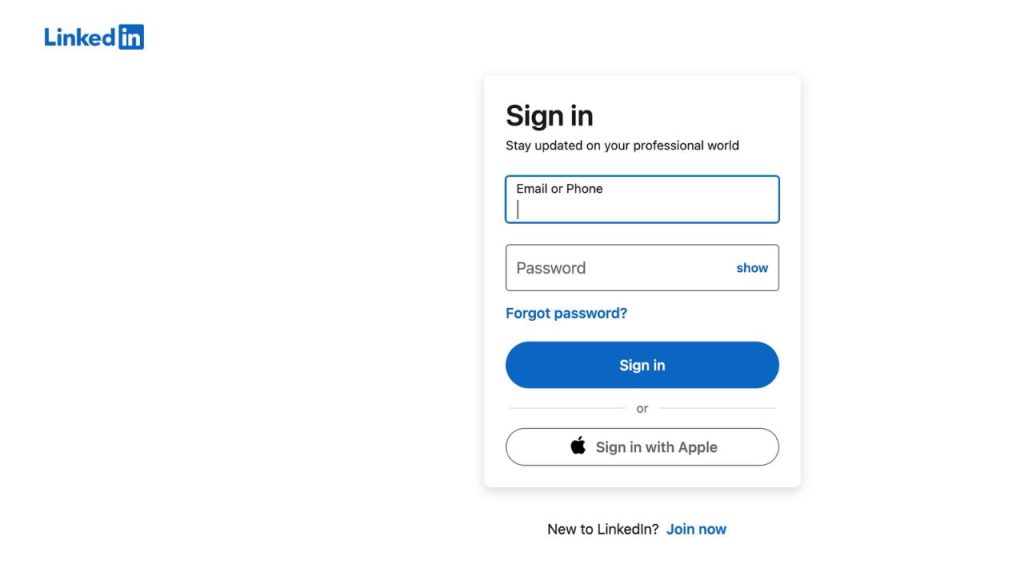
- Go to www.linkedin.com and log in with your “Email” or “Phone number” and “Password”.
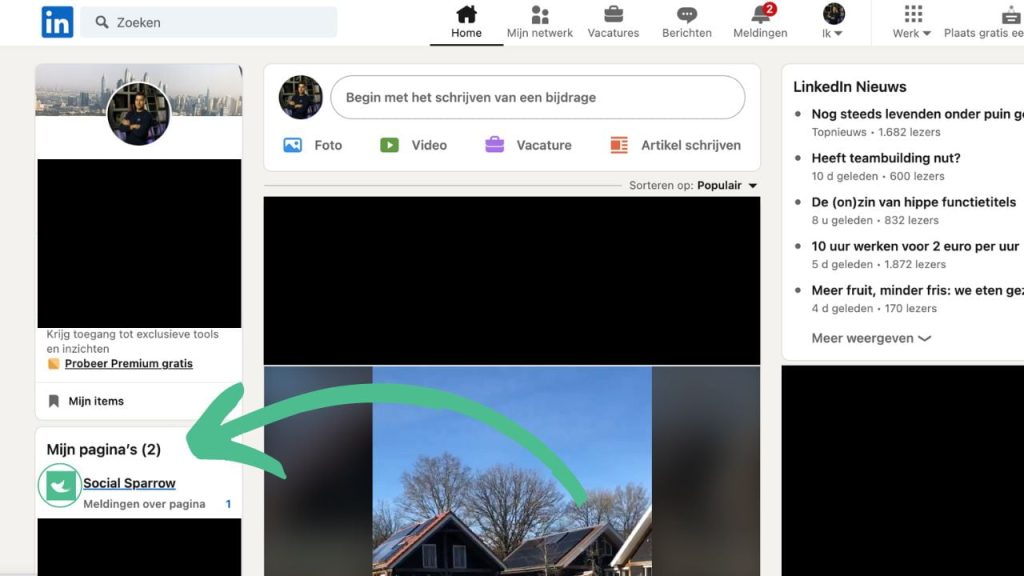
2. Go to the company’s page.
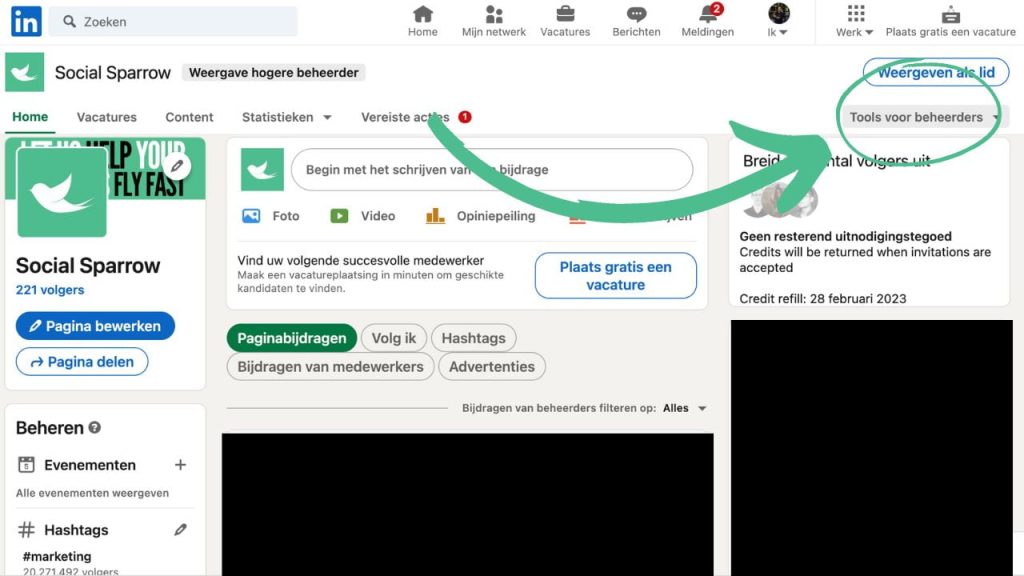
3. Click the “Tools for Administrators” tab.
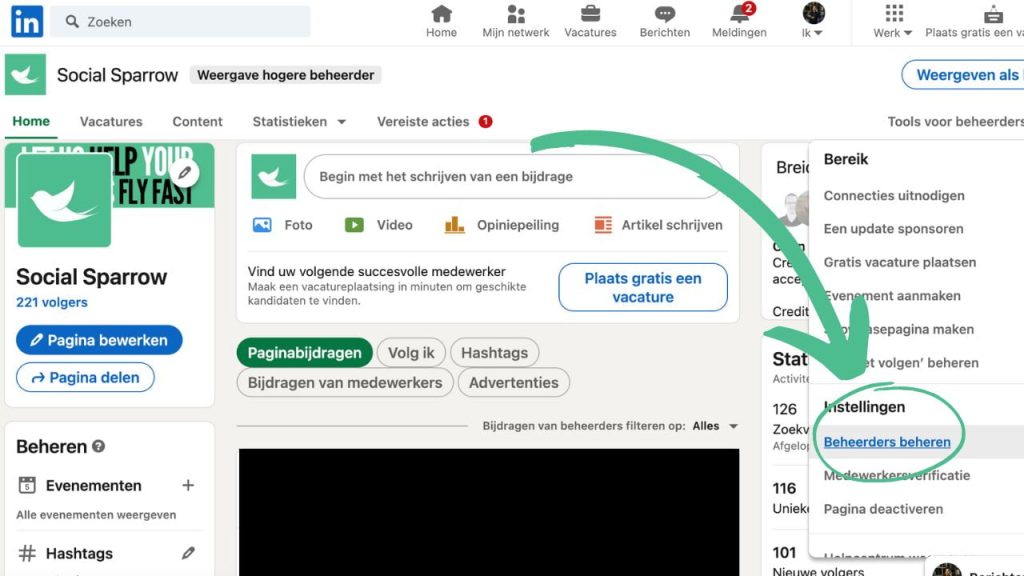
4. Click on the “Manage employees/administrators” tab.
5. Click the “Add Administrator” button.
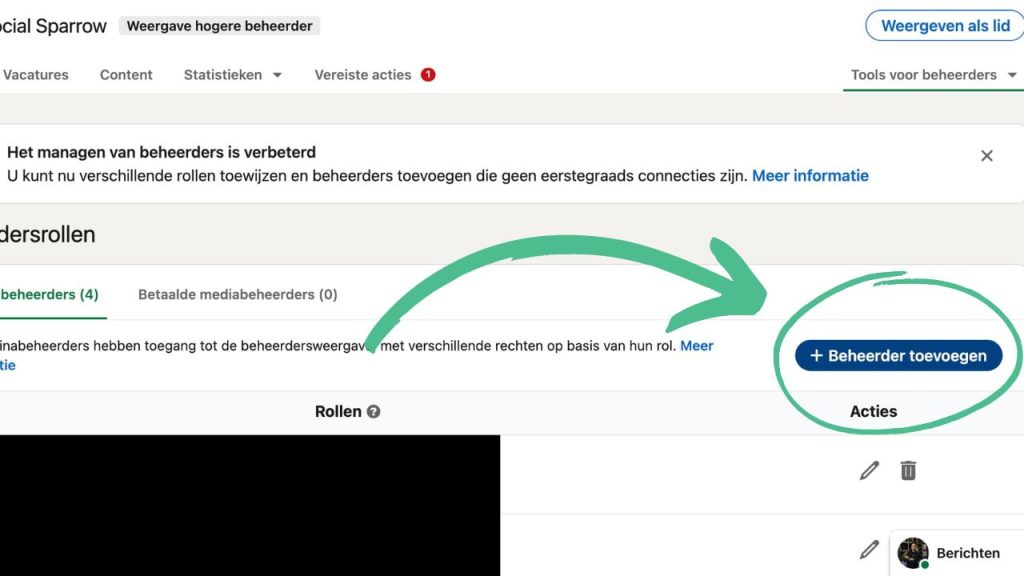
6. Enter the email address/name of the person to whom you want to give access.
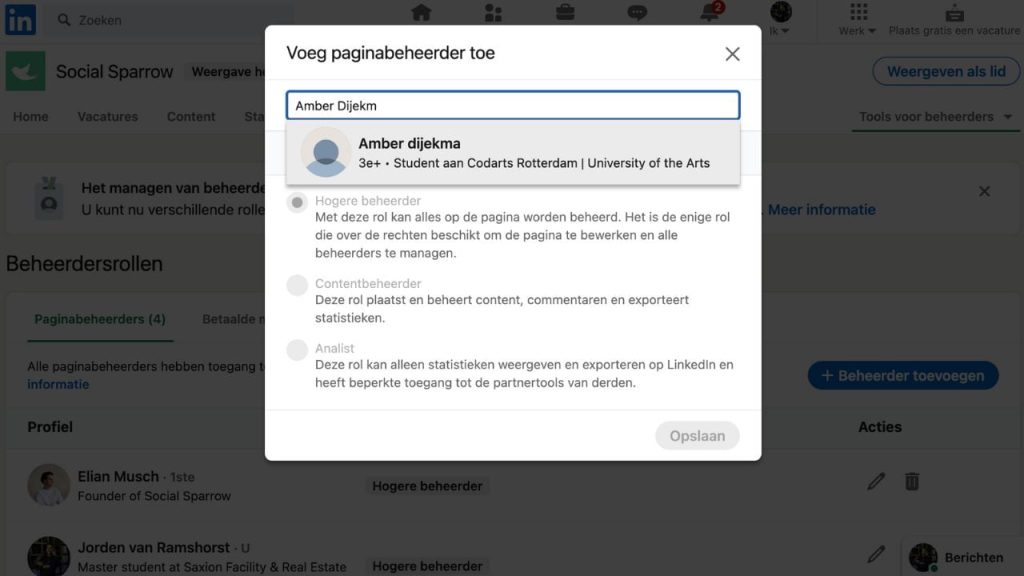
7. Choose the role you want to assign: Administrator, Editor, or Advertising Manager.
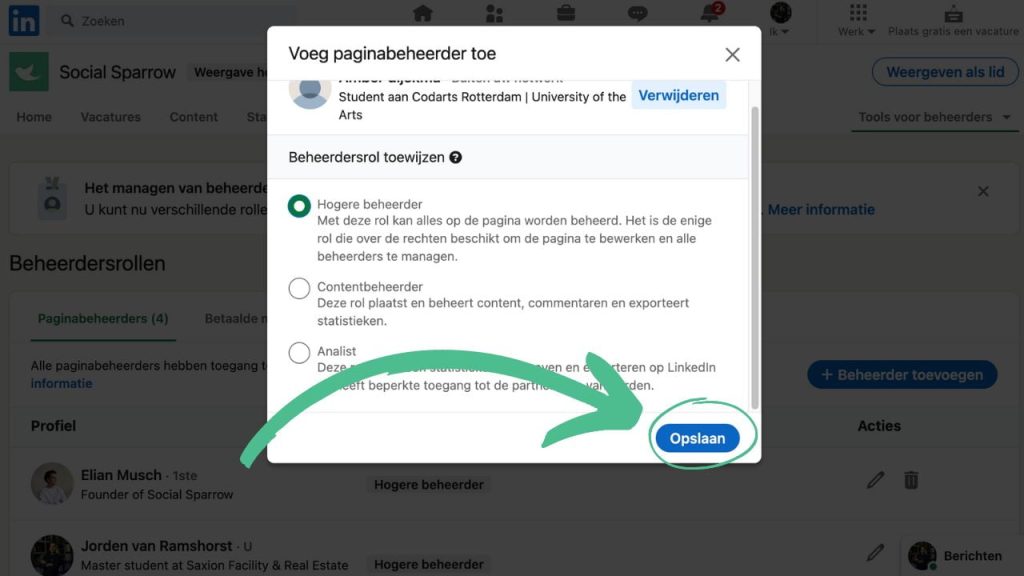
8. Click on “save”.
The selected person will receive an email invitation to manage the company page and will need to sign in with a LinkedIn account to access it. If you want to give more people access, you can repeat these steps for each person.
If you require additional assistance in add an admin, schedule a call with us today. Our team will be more than happy to assist you.