

Digital Marketing1 minute read
How to add someone to your Google Analytics Account?


How to add someone to your Google Analytics Account? To add someone to your Google Analytics account, you will need to follow these steps:
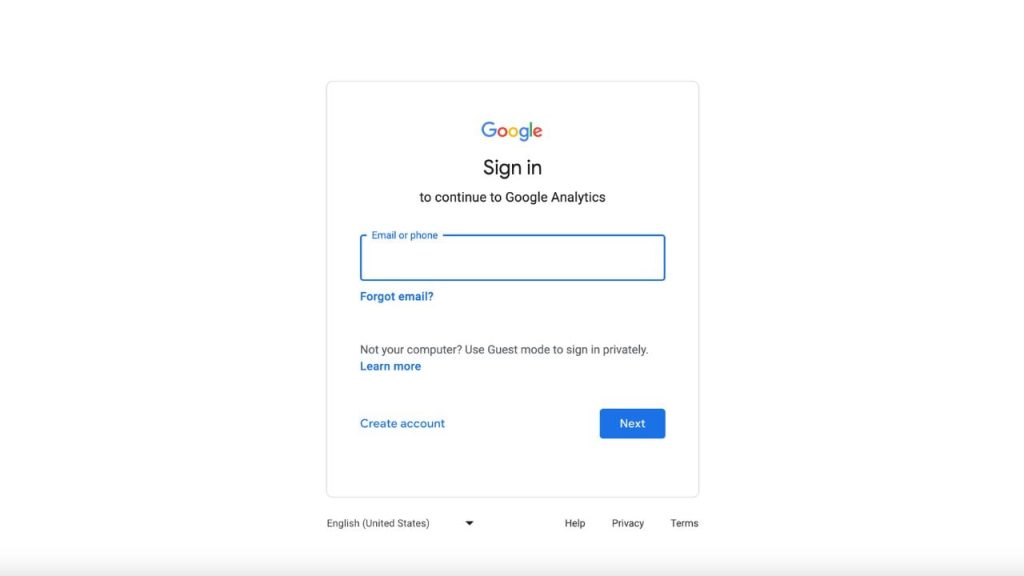
- Go to the Google Analytics website.
- Sign into your Google Analytics account with your “E-mail/Phone Number”
and Password.
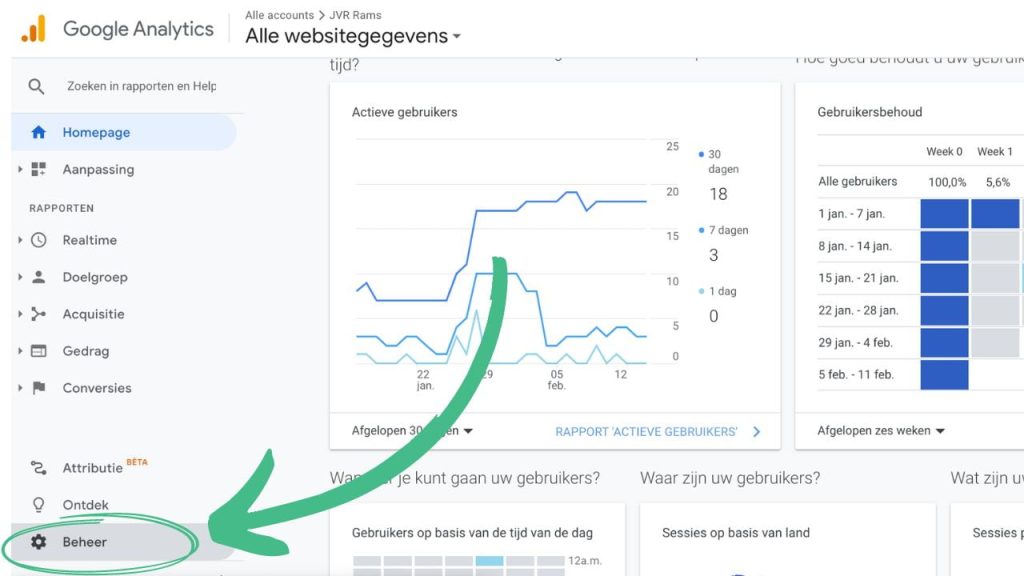
3. Click on the “Admin” (Gear Icon) button in the bottom left corner.
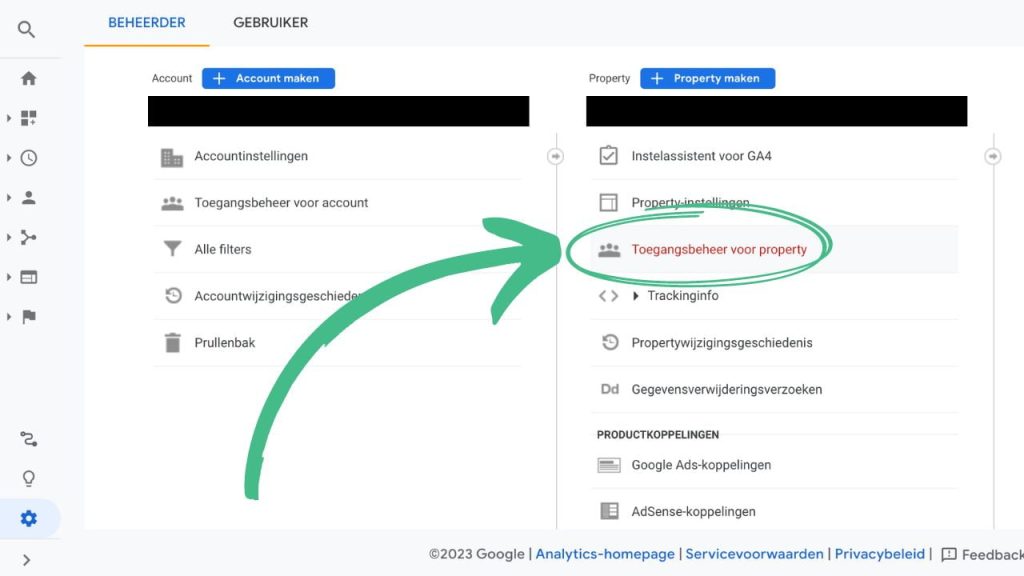
4. In the second row click on the right “Property” and select the access management for property (Icon with three people).
5. In the “Account” column, select the “Plus” icon to add the account to which you want to add a user
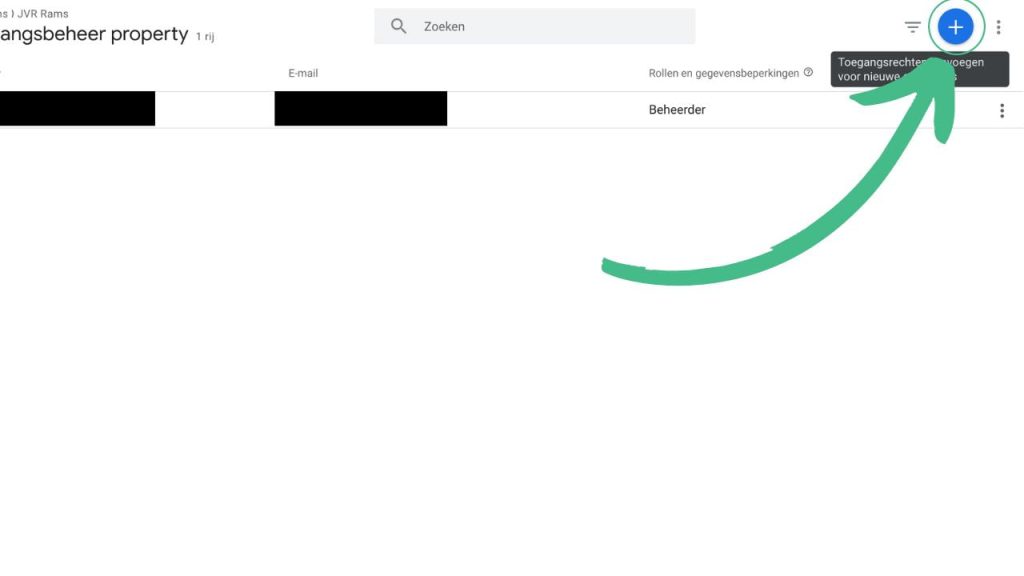
6. Enter the email address of the person you want to add in the text box.
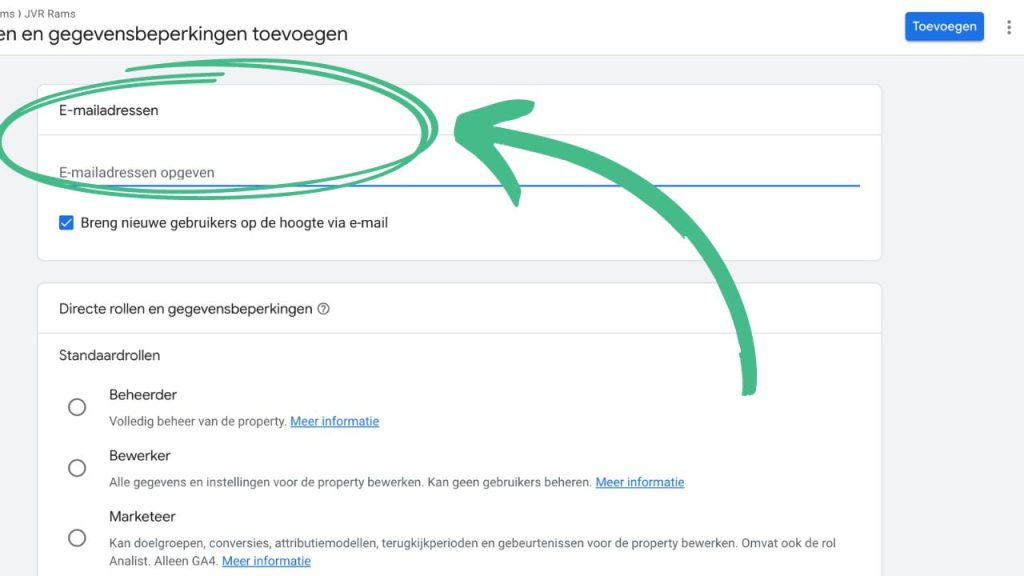
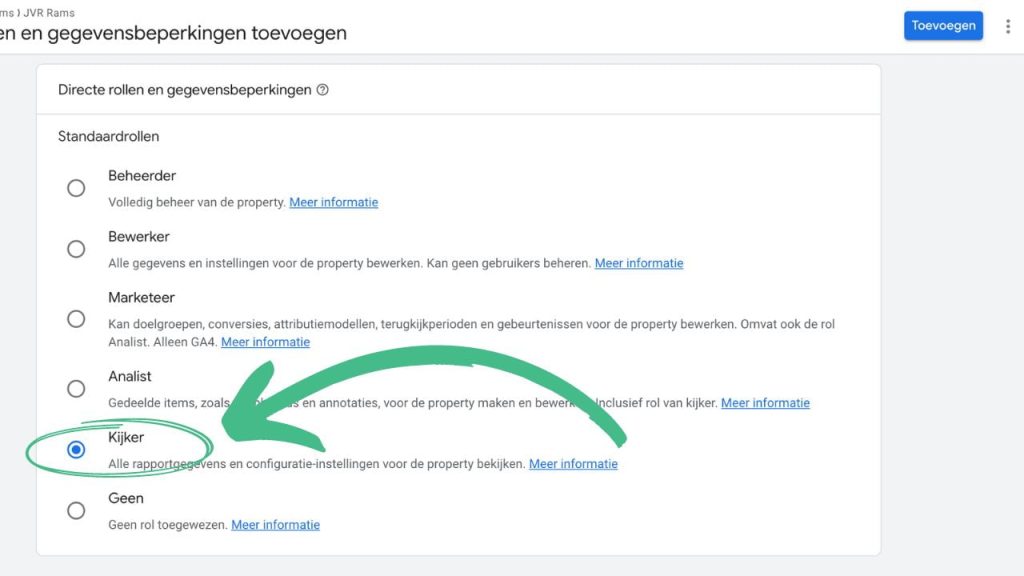
7. Select the permissions you want to grant to the user. You can choose from various levels of permissions, including “Manage Users,” “Edit,” “Collaborate,” and “Read & Analyze.”
8. Click on the “Add” button to add the user to your Google Analytics account.
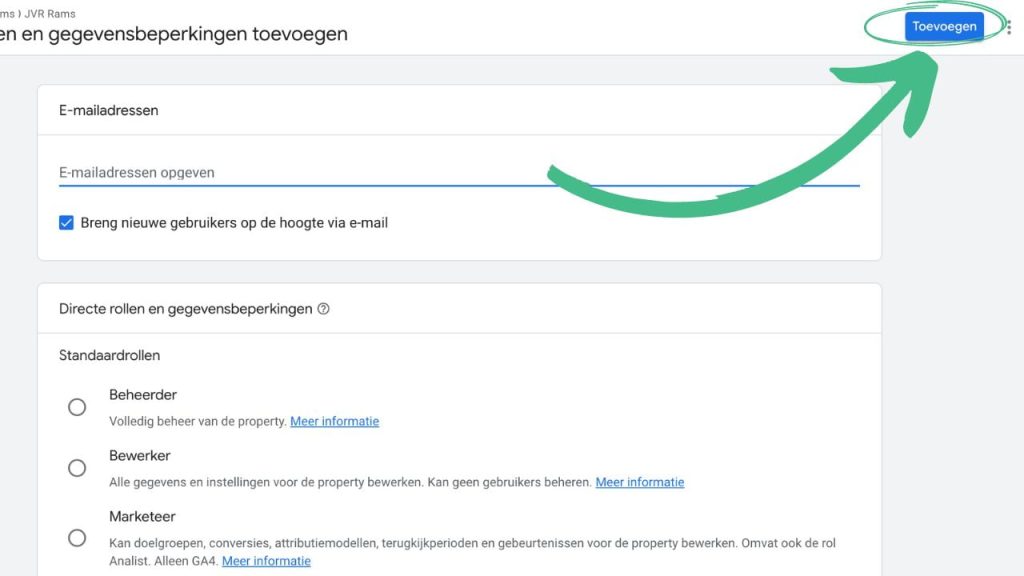
The person you added will receive an email notification and will be able to access
your Google Analytics account using their own Google account credentials.
If you require additional assistance in making Social Sparrow an admin, schedule a call with us today. Our team will be more than happy to assist you.